
Mastercam Student Version Installation Guide
The Mastercam student/demo version requires an activation code, which you can obtain free of charge from the Mastercam manufacturer's website.
Five steps to obtain the license:
- Create an account at my.mastercam.com
- Verify your my.mastercam account
- Request the student-version activation code
- Install the Mastercam student version on your computer
- Enter the activation code in Mastercam
Contact us if you encounter any problems or error messages while requesting or installing the license.
[contact_member,name="",id=2,details=Name-Telephone-MobilePhone-Email]
Create an account at https://signup.mastercam.com/try-mastercam
- Creating a mastercam.com account requires an email address. Enter your email address in the Enter your email to start field.

- After entering your email address, allow the website to save your information.

- Click Get Started.
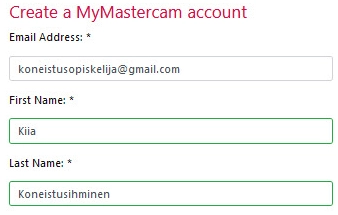
The website will then ask you to enter your my.mastercam.com account information. - Make sure that your email address is entered correctly, and provide your first and last name.
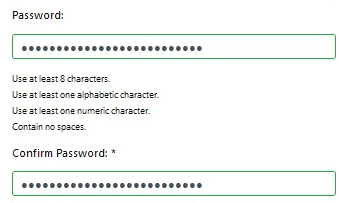
- Next, create a password for your account. The password must meet the following requirements: at least 8 characters, at least one letter, at least one number, and no spaces.
- Re-enter the password in the Confirm Password field.
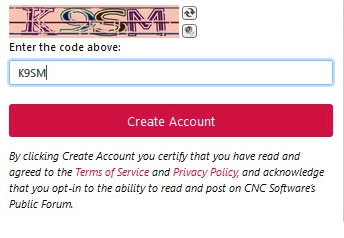
- Complete the CAPTCHA field. Enter the letters and numbers shown in the image in the field below, then select Create Account.
Verify your my.mastercam account
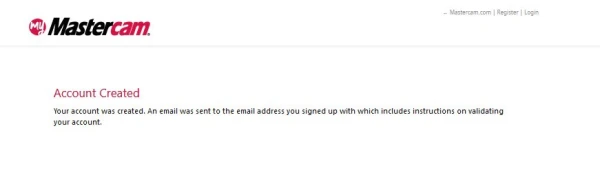
- The website will notify you that a verification email has been sent to the email address you provided.
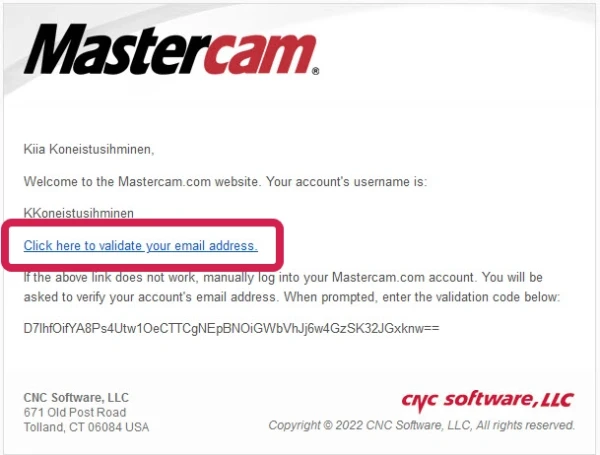
- Open your email and look for the Mastercam.com Validation Code message. If the message does not arrive within 10 minutes of creating your account, check that it has not been delivered to your spam folder.

- The message contains a verification link. Click the Click here to validate your email address link to verify your account.
- The verification link opens in your internet browser and confirms that your account has been successfully verified.
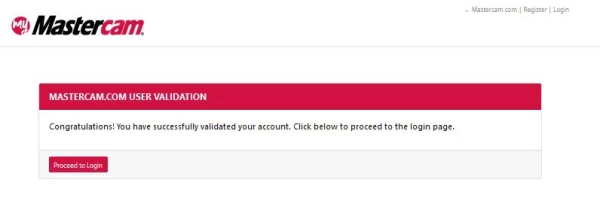
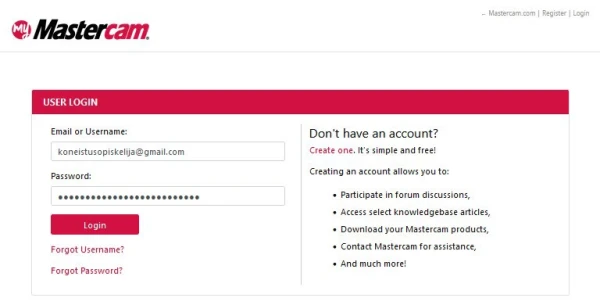
- Select the Proceed to Login button to go to the login page. Enter the email address and password you used to create your account on the website, then select Login.
Request the Student Version Activation Code
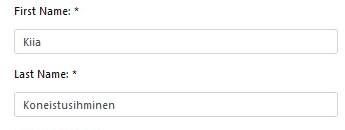
The site will request additional information when you first log in to your my.mastercam.com account. All fields marked with an asterisk (*) are required.
- Make sure your name is entered correctly.
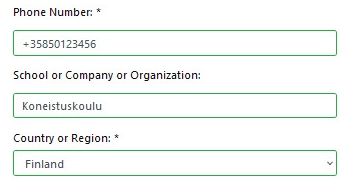
- Next, enter your phone number and the name of your educational institution or company. Then select Finland from the Country or Region menu.
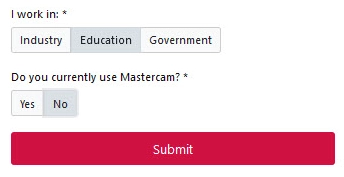
- Next, enter your organization information. If you are a student, select Education. If you work for a company, select Industry. Answer the question Do you currently use Mastercam? with either Yes or No, and select Submit.
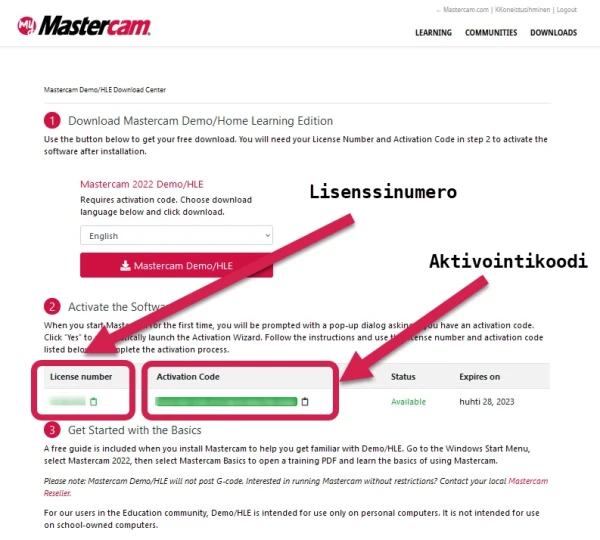
- You will receive the Mastercam student version license number and activation code here. Copy and save both, as you will need to enter this information in Mastercam after installation, when you launch the software for the first time.
Install the Mastercam Student Version on Your Computer
- Download the latest version of Mastercam here. If you want the software to be installed in Finnish, also download the Finnish-language menus.
- Double-click the installation file once the download is complete.
- Follow the instructions provided by the installation file and install Mastercam on your workstation.
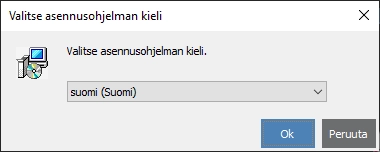
- Accept the license terms and select OK to begin the installation.
Enter the Activation Code in Mastercam
- Launch Mastercam after installing it on your workstation.
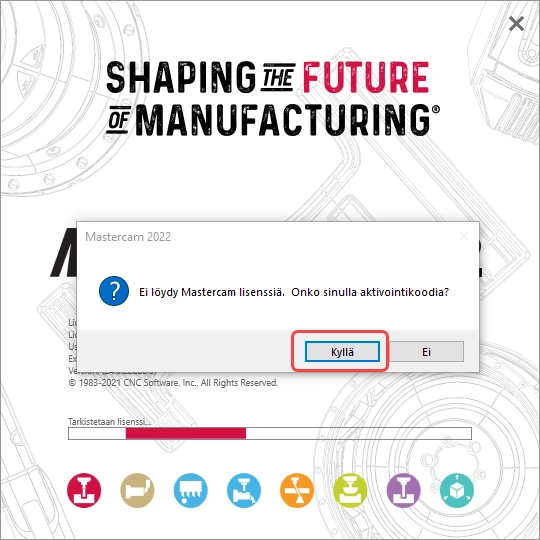
- When you launch Mastercam for the first time, the software will ask whether you have an activation code. Select Yes.
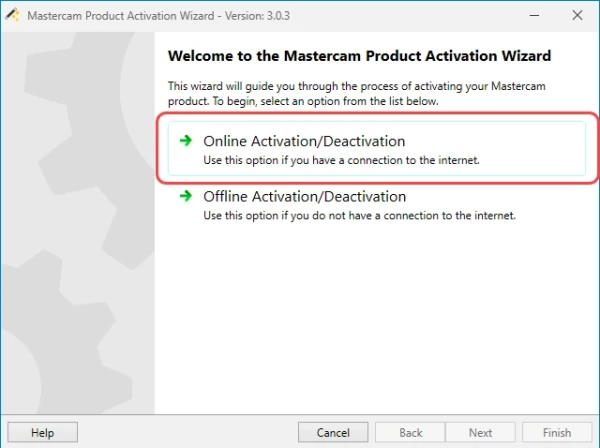
- The software's Activation Wizard will open. Select Online Activation/Deactivation.
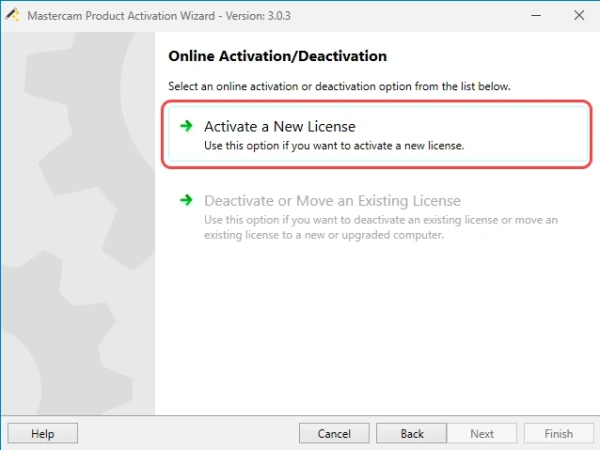
- Select Activate a New License and accept the terms of use.
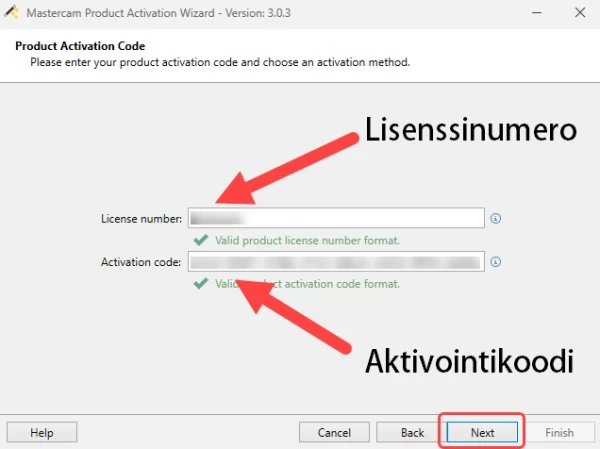
- The software will connect to the activation server and request your license number and activation code. Copy the saved license information into the fields. A green check mark will appear below the fields. Then select Next.
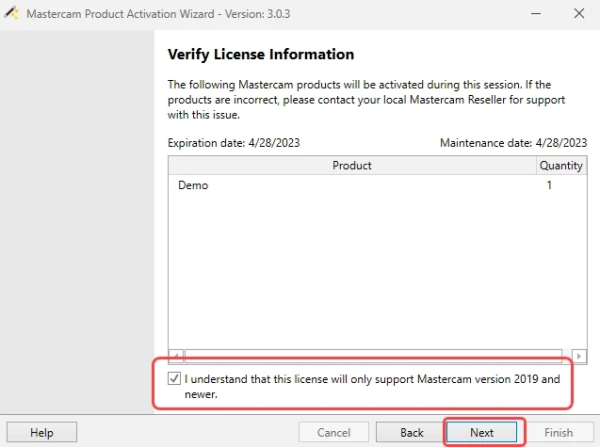
- The software will connect to the activation server again, after which it will display the student version license information. Check I understand that this license will only support Mastercam version 2019 and newer, then select Next.
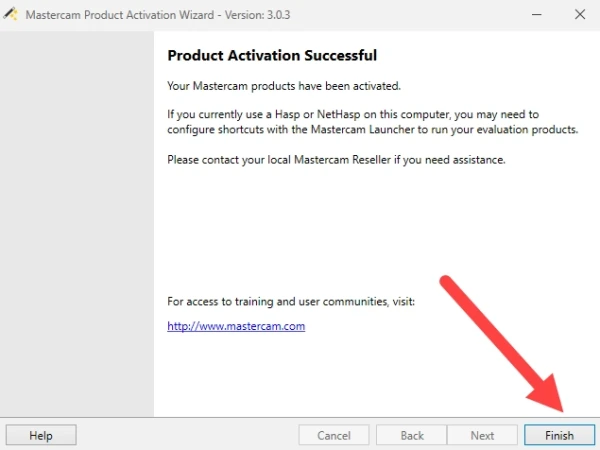
- The program connects to the activation server and notifies you that activation was successful. Select Finish. The student version license is now installed!
- Launch Mastercam
- Mastercam asks you to accept the end-user license agreement. Check Yes, I have read and accept the agreement, then select Continue.


