Installing a Mastercam Post Processor

Mastercam postprocessors are delivered in different formats depending on the type of machining and the manufacturer. The most common formats are ZIP-packaged postprocessors, .mcam-content files, and Mill-Turn environments. This page provides step-by-step instructions for installing each format correctly and explains where the files should be placed.
Correctly installing the postprocessor is important because it ensures that Mastercam generates the correct NC code for the machine tool. An incorrect installation may prevent the machine settings or toolpaths from displaying correctly in the software.
Mastercam Postprocessor Terms of Use
Before using the postprocessor, it is important to review the Mastercam Postprocessor Terms of Use.
The terms of use define the principles governing the use, testing, and responsibilities related to the postprocessor. The customer is always responsible for using and testing the postprocessor, so we recommend reading the terms carefully before installing and using the postprocessor.
ZIP-Packaged Postprocessor Package
The most common delivery format is a ZIP package containing the postprocessor files as well as the machine and control definitions.
The ZIP package should be extracted to Mastercam’s shared folder, which is typically located in the following directory:
- C:\Users\Public\Documents\shared Mastercam 202x\
or, on a Finnish-language Windows installation:
- C:\Käyttäjät\Julkinen\Julkiset dokumentit\shared Mastercam 202x\
Extracting a ZIP package does not require any additional software. Right-click the file and select “Extract All…”. You can then select “Browse” and choose the Shared Mastercam 202x folder as the extraction destination.
When the package has been extracted correctly, the files will automatically be placed in the appropriate subfolders:
- cnc_machines\
- mill\posts\ and/or
- lathe\posts\
.mcam-content Postprocessor Package
Some postprocessor manufacturers deliver their packages as .mcam-content files. This is Mastercam’s native content package format, which is automatically installed in the correct folders.
To install the package, drag and drop the .mcam-content file directly into the Mastercam workspace (the main window area). Mastercam will then install the content automatically and notify you when the installation is complete.
This installation method is easy and fast and does not require separate extraction or manually moving files.
Mill-Turn Machine Environments
Mill-Turn environments are delivered in separate packages and must be installed in their designated directory.
Save the environment files in the following folder:
- C:\Users\Public\Documents\Shared Mastercam 202x\Mill Turn\machines
Once the files have been placed in the correct folder, the new Mill-Turn machine environment will appear in Mastercam’s machine selection list the next time the software is started.
Cimco Postprocessors
Cimco postprocessors use a dedicated .dll utility that enables communication between Cimco Edit and Mastercam.
You can download the required Cimco CP6 installation package here: Cimco CP6
Run the downloaded .exe installation file. The cp6.dll file will be installed automatically in the correct directory.
After installation, Mastercam will recognize the Cimco connection, and the postprocessor will be ready to use.
Loading a Postprocessor into an Older Mastercam File
If you have upgraded Mastercam to a newer version and want to use an older postprocessor, it is important to make sure that outdated settings are not still active in the file.
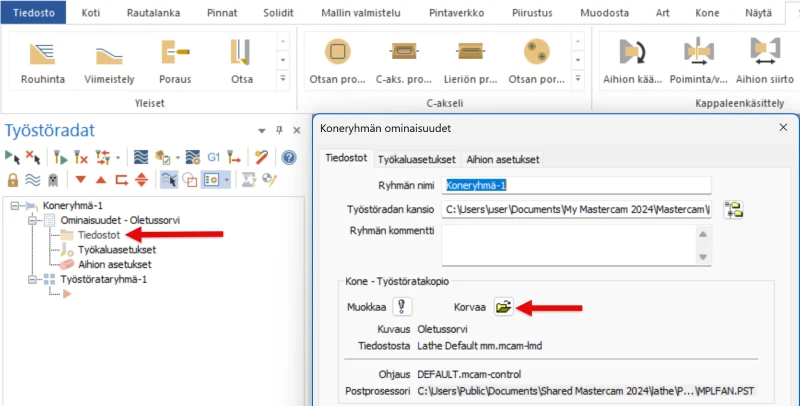
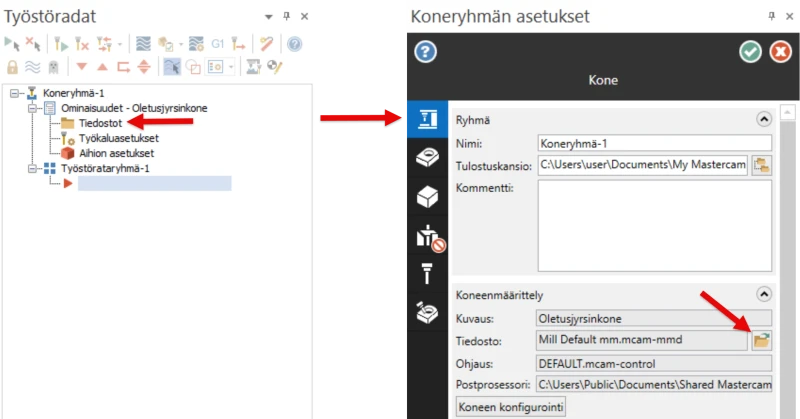
If old machine settings remain visible, resolve the issue as follows:
- Open the machine group settings.
- From the menu, select File → Replace (machine definition).
- Select the new or updated postprocessor file.
This ensures that the file uses the latest machine definition and the correct postprocessor.
Mastercam Mill
Mastercam Lathe